%20copy.png)
How your health score works and how to set it
Set how your health score is worked out, test it on a real company, and see who would move before you save.
Your health score shows which companies need attention. You can change how it is worked out, test it on a real company, and see who would move before you save anything.
Find it under Settings, then Intelligence, then Health score. Only owners and admins can change it. Everyone else sees the same page with the controls greyed out.
What the health score is
Every company gets one score from 0 to 100, built in four steps: the relationship, the tone of what your customers write to you, any warning sign, and service. A company with no recorded interactions shows "Not enough data". Service can only pull a score down, never lift it.
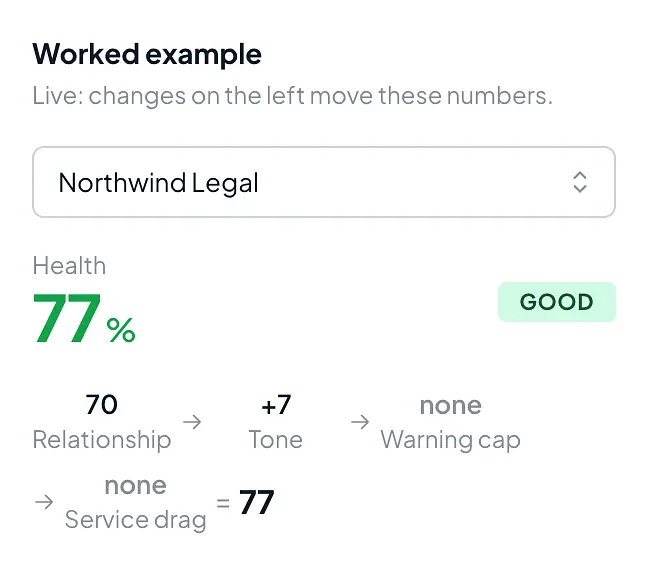
The colour and word beside each score come from your bands. By default a company is At risk below 45, Watch from 45 and Good from 70. These cutoffs also decide who lands on your at-risk list.
Set how often you expect contact
Every meeting, call and email earns points for the people involved, and those points fade over time. Choose Monthly, Quarterly or Half-yearly to set how fast. The default is Quarterly. A long meeting earns far more than an email, and decision makers count for more than team members. You can change both.

Tone and warning signs
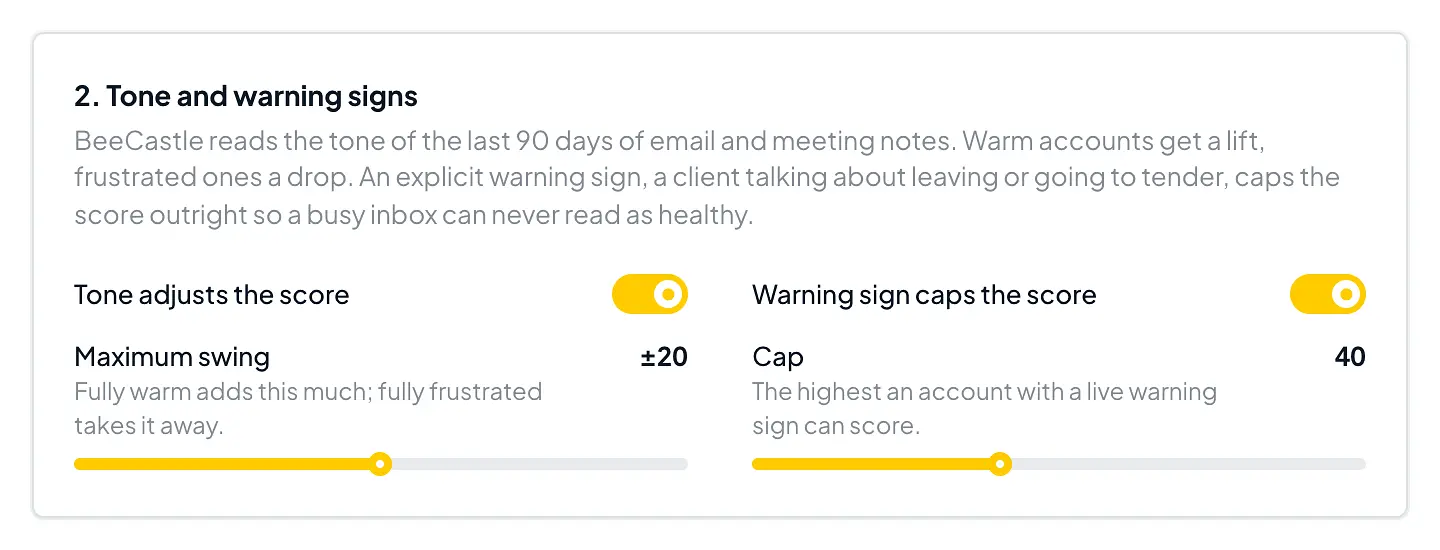
BeeCastle reads the tone of the emails your customers sent you in the last 90 days. Warm accounts get a lift and frustrated ones a drop, by up to 20 points by default. Meetings, calls and emails you send do not count here.
If an email shows intent to leave, cancel or look at other providers, the score is capped, 40 by default. Ordinary complaints do not trigger it. Each of these has its own switch.
Decide whether service counts
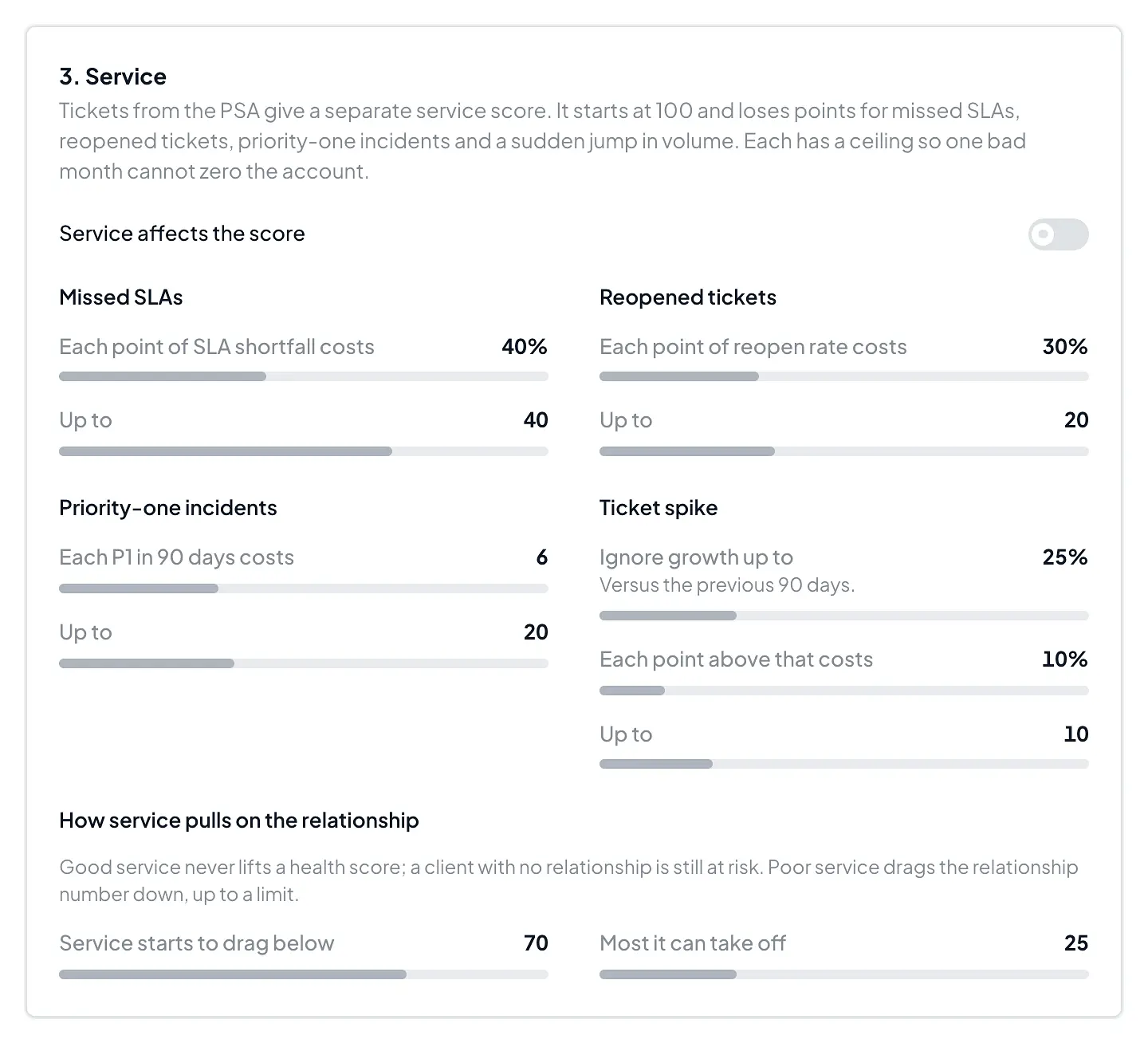
Service comes from your PSA tickets: missed SLAs, reopened tickets, priority-one incidents and a sudden rise in volume. By default it starts to pull a company's score down when its service score falls below 70, by up to 25 points.
If you do not want service to affect health, switch off Service affects the score. Your ticket data is kept, but service stops counting towards health. The service settings grey out, and service no longer appears in the worked example, the hover summary on a company's health, or at-risk actions. The BeeCastle AI connector also reports that service is not in the score.
Test it on a company
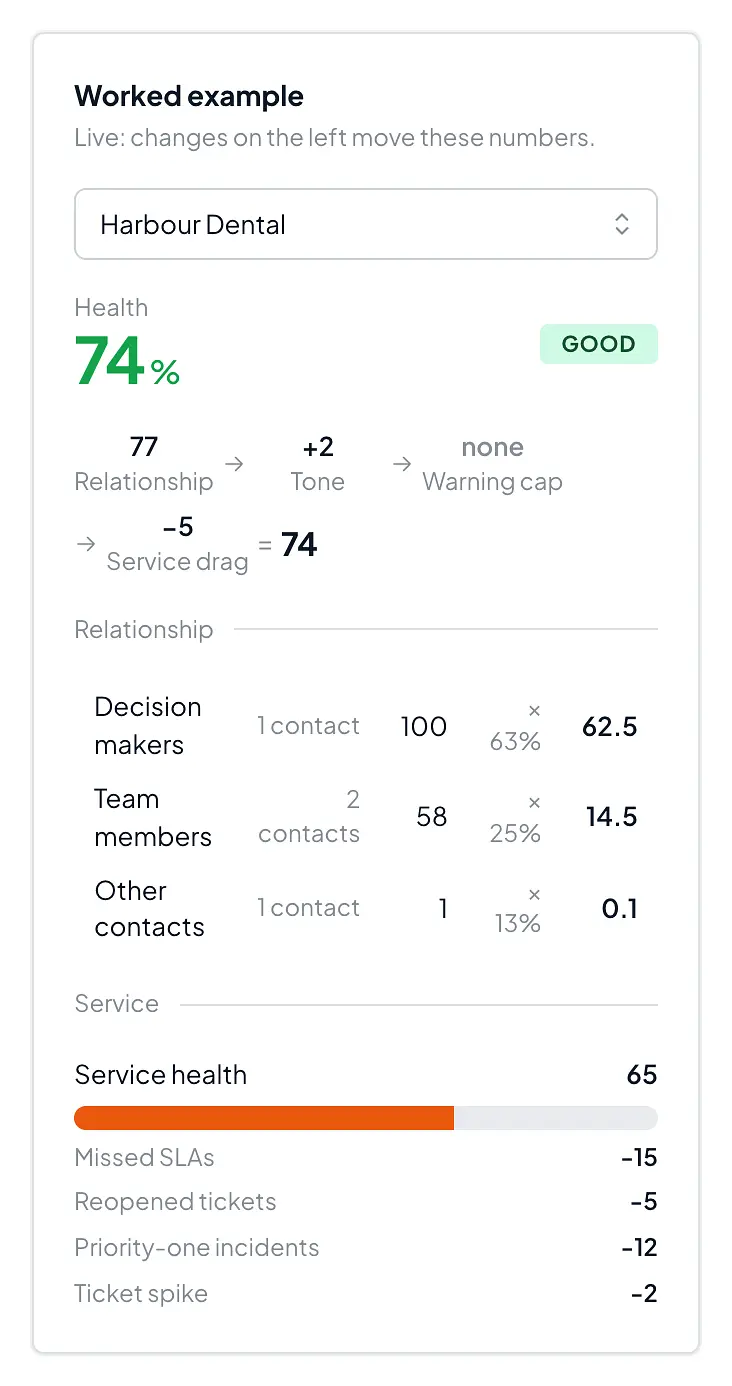
The worked example on the right shows the full working for any company, using the settings you are editing. Pick a company, search across all of them, and change a slider to see the relationship, tone, cap, service and final score move.
See the effect, then save
The bar at the bottom counts your companies in each band now and under your draft, and tells you how many would change band. When you are happy, choose Save. BeeCastle recalculates every score in the background, usually within a couple of minutes.

Example with a changed setting: Good from is raised to 78, so two companies would move from Good to Watch.
Recalculate now rescores without changing a setting. Reset to default puts your organisation back on the standard health score.
Was this article helpful?
Related articles
Open Opportunities "Next Meeting" and "Stage" filter
How to use the "Next Meeting" column and the "Stage" filter on the Open Opportunities view to quickly review pipeline.
Engage with BeeCastle featuresCustomer Profitability - Set Up & Data
This guide shows you how to set up and sync your data for Customer Profitability
Engage with BeeCastle featuresCreate Meetings from Open Opportunities
Quickly action meetings when you need to and save time
Engage with BeeCastle featuresTrack Your Contracts in BeeCastle
Now you can see all of your contracts in BeeCastle and stay ahead of the game!